What it is
TerminalDeck is a single-window native macOS dashboard that catalogues every CLI tool on your machine, shows you which ones are installed, which ones need installing, and gives you a one-click path from not installed to running — with a built-in tabbed terminal so you don't have to leave the app.
It tracks 157 tools across 16 categories: AI coding agents, OpenClaw, local LLMs, productivity, dev/build tools, shell, editors, network, k8s, cloud, databases, and more. Of those, 78 are detected as installed on your machine. The other 83 are waiting in the Discover section with a one-click brew install button.
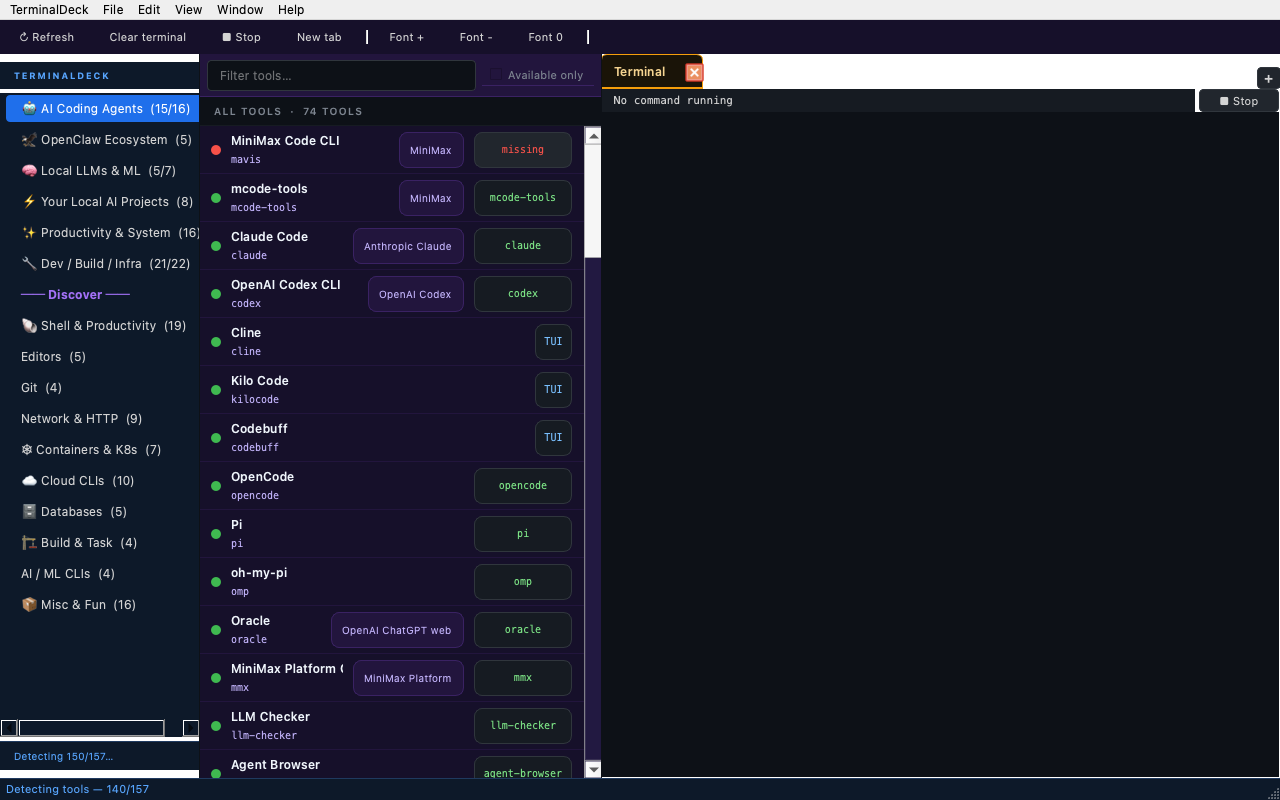
Main view
What it does
Finds every CLI on your Mac
157 tools tracked. Detection runs each tool's --version with a 1.5s timeout and bails early on TUIs and REPLs (Claude Code, Codex, Ollama — they don't quit on a version query).
One-click install for the rest
Missing tools show a blue ↓ install chip. Click it and the app runs brew install, pip install, npm i -g, or whatever fits — live, in the terminal pane.
Built-in tabbed terminal
pyte-backed VT100 emulator. Tab title shows tool · command, with a ✓/✗N badge after the process exits. Real keys work: arrow keys, Ctrl-C, Ctrl-D, Backspace, mouse reporting, alternate screen.
Right-click to launch anywhere
For long-running TUI agents, right-click any tool and choose Open in Terminal.app or Open in Warp. The built-in PTY chokes on Claude/Codex/omp — the external launchers don't.
Mac-native keyboard shortcuts
⌘T new tab · ⌘W close · ⌘D duplicate · ⌘⇧R restart · ⌘1..9 switch · ⌘F find · ⌘, prefs · ⌘± font · ⌘Q quit. Plus the native Mac menu bar with About, Preferences, Quit.
Remembers your session
QSettings persistence: window size + position, splitter sizes, last category, filter text, "Available only" toggle, font size, terminal cols/rows. Relaunches exactly where you left it.
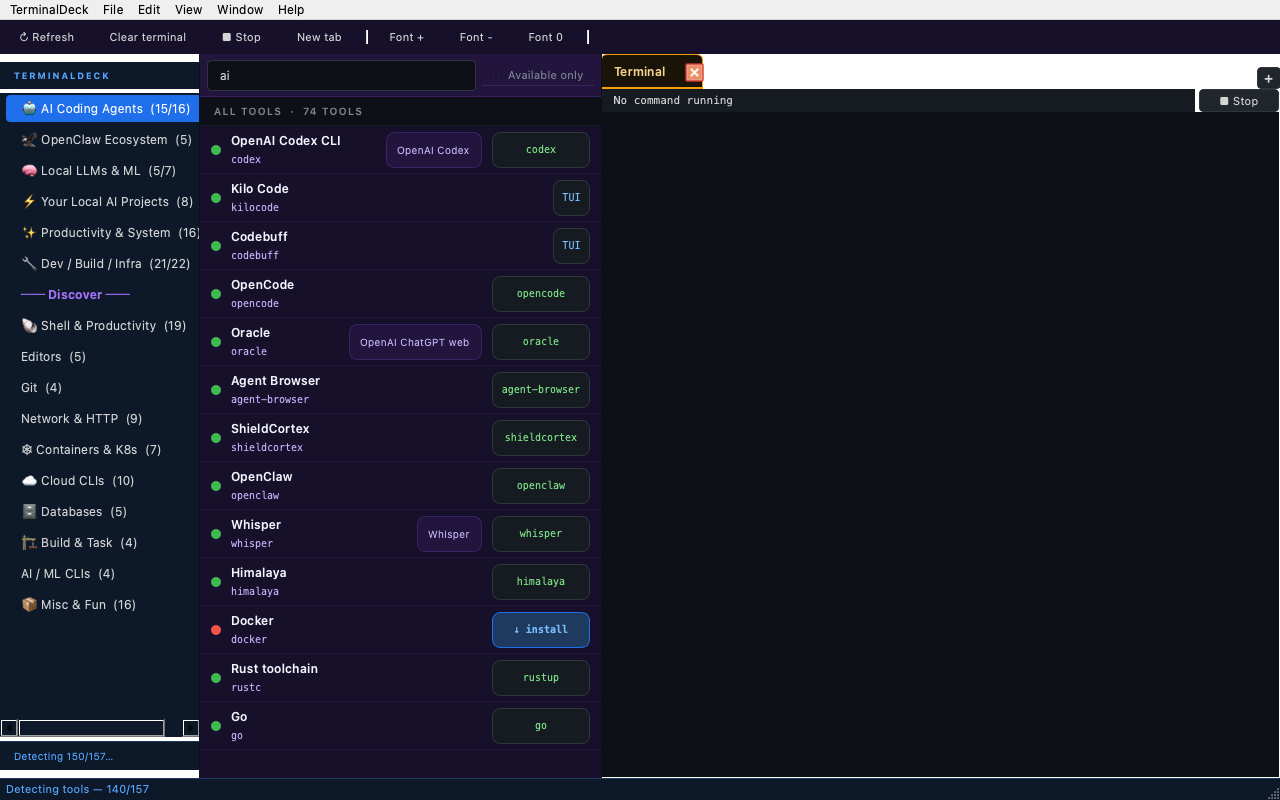
Filter as you type
Discover — install with one click
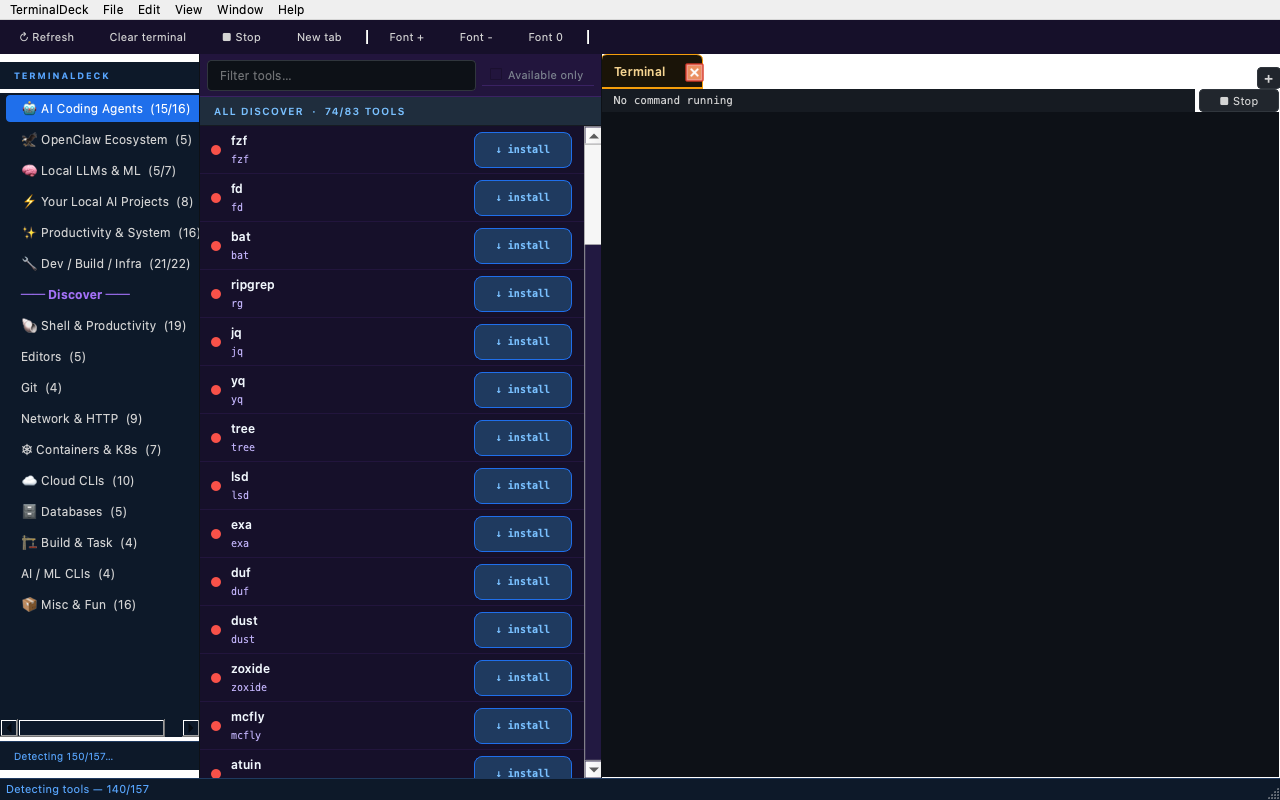
The Discover section is a curated catalog of 83 popular CLIs you might want. Each one has an install command already wired up. Click the blue chip and the install runs live in the terminal pane — you see the actual brew install output as it happens.
Discover section
The built-in terminal
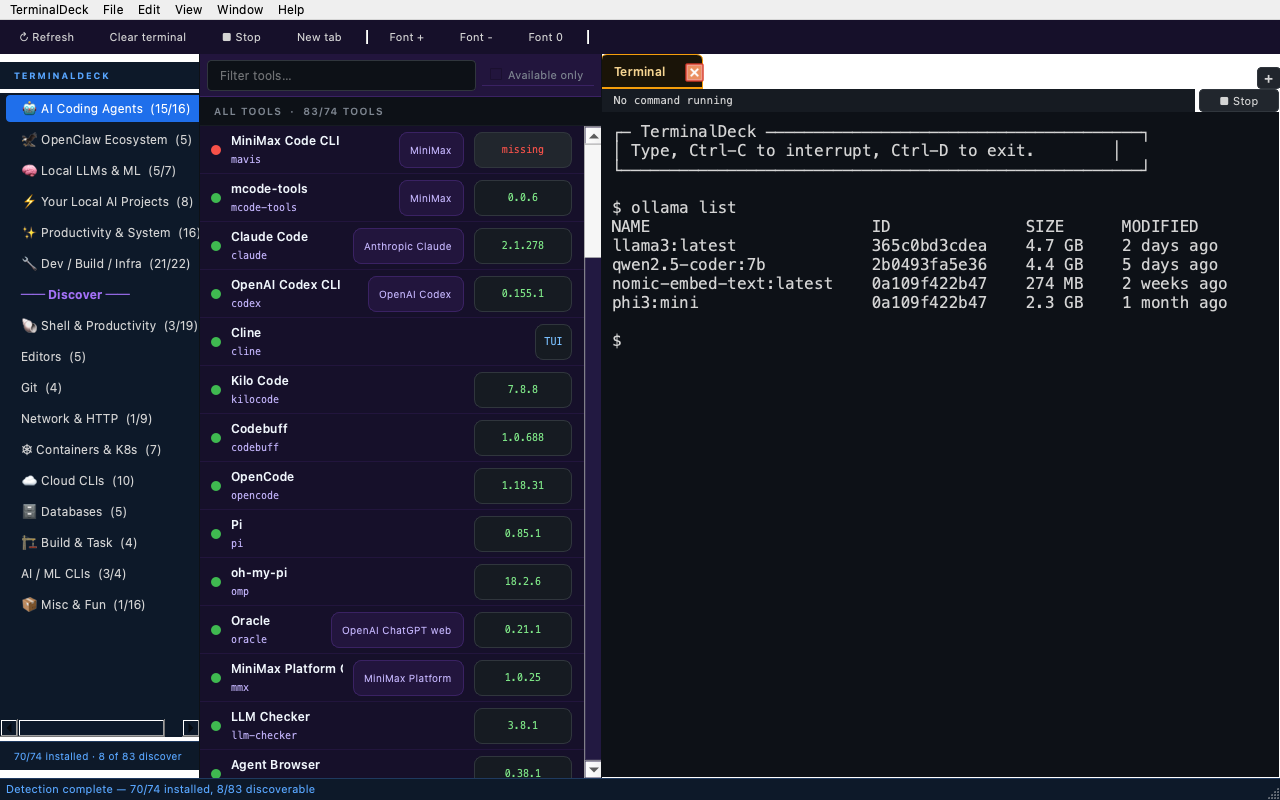
The right pane is a real terminal. Click any tool to launch it. The tab title shows tool · command while running, then ✓ on clean exit or ✗N on a non-zero exit. Hover the tab for full command + duration.
Built-in terminal with output
Settings
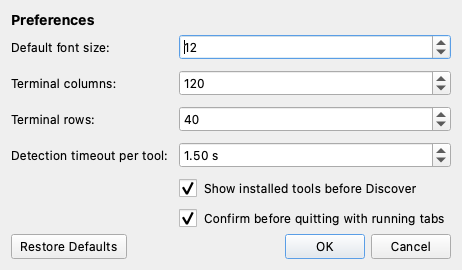
Press ⌘, to open Preferences. All settings persist via QSettings and apply on next launch.
Preferences dialog
Keyboard shortcuts
Press ⌘/ in the app to see the full list. The most useful ones:
| ⌘F | Focus filter |
| ⌘T | New tab |
| ⌘W | Close current tab |
| ⌘D | Duplicate current tab |
| ⌘⇧R | Restart current tab's command |
| ⌘Return | Launch selected tool |
| ⌘1 … ⌘9 | Switch to tab N |
| ⌘K | Clear terminal |
| ⌘C | Stop current process |
| ⌘±/⌘0 | Font size up / down / reset |
| Ctrl+R | Re-detect tools |
| ⌘, | Preferences |
| ⌘Q | Quit |
How it's built
PySide6 for the GUI, pyte for the VT100 emulator, ptyprocess under the hood. No Xcode required, no Swift. Pure Python. The whole thing bundles into a 97 MB arm64 .app via PyInstaller and installs at /Applications/TerminalDeck.app.
The 157 tools live in terminaldeck/tools.py as a single registry — adding a new tool is one line. Detection runs in a local thread pool with cancellation support and progress reporting. The terminal pane uses a QThread to read the PTY master fd and feeds bytes into pyte's HistoryScreen; output renders as HTML in a QPlainTextEdit at 30 fps.
Get it
License
MIT. Use it, fork it, ship it. The whole project — every line of Python, every QSS stylesheet, every pyte integration — is in the repo.